
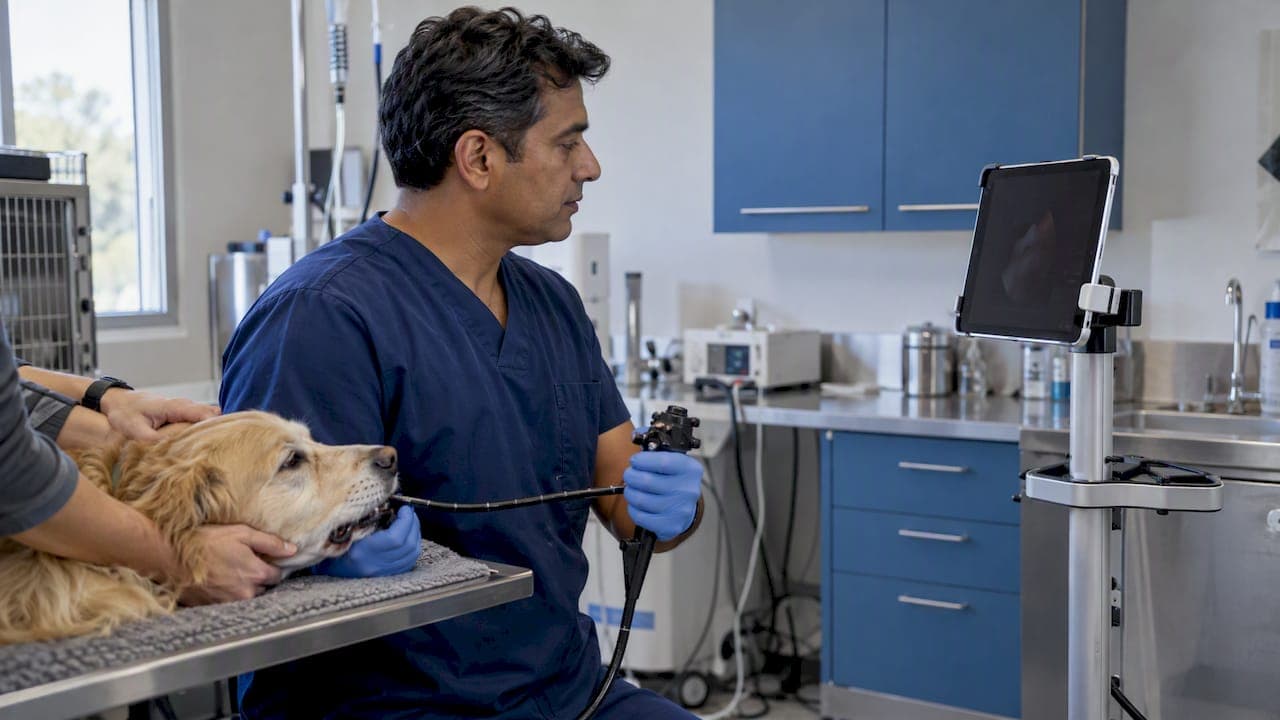
Yes, an endoscope or borescope can show live video on an iPad. There are two ways to do it. A Wi-Fi scope broadcasts its own network and the iPad views it in an app. A USB-C scope plugs straight into the iPad and shows the image through a camera-capable app. Which one suits you depends on the iPad you own, the work you do, and how much you need to record and share.
This guide is for clinics and inspection teams who want a tablet as the monitor. It covers what to check before you buy, how each connection works, how to record, what to do when the picture fails, and how a veterinary exam differs from an industrial inspection.
TL;DR
- Wi-Fi scopes create their own hotspot. You join it from the iPad and view the feed in the maker's app. USB-C scopes connect by cable and need an app that supports external cameras.
- Check the iPad port (USB-C or Lightning), the iPadOS version, the scope's connection type, and the app before you commit to a setup.
- Use a real data cable. Charge-only cables carry no video, and some scopes need a powered hub.
- Record and save from the app, then test the whole chain on a bench before taking it into an exam room or a job site.
- For clinical work where the image must not drop, a dedicated monitor or SD-card videoscope is a dependable backup to a tablet.
Table of Contents
- Can an endoscope stream live video to an iPad?
- How to connect a Wi-Fi endoscope to an iPad
- Connecting by USB: the cable route
- Compatibility checklist before you buy
- Recording and saving photos and video
- If the iPad will not connect or the image lags
- Veterinary exams versus industrial inspection
- Our perspective
- Choosing a scope for your setup
- A quick pre-use test routine
- FAQ
- Sources
Can an endoscope stream live video to an iPad?
It can, and it is routine for small inspection cameras. The scope has a camera and LED at the tip, a cable, and a handle with electronics. The iPad is the screen, the storage, and the controller.
There are three common architectures:
| Connection | How it works | Strength | Weak point |
|---|---|---|---|
| Wi-Fi (wireless) | The scope runs its own Wi-Fi network. The iPad joins it and an app shows the stream. | No cable to the tablet, easy to hold a scope in one hand and a tablet in the other. | The iPad often loses its normal internet while joined; battery in the scope handle; image can lag. |
| USB-C direct | The scope plugs into the iPad's USB-C port and an app reads it as an external camera. | Stable, low delay, powered by the iPad. | A cable between scope and tablet; needs a compatible app. |
| Scope with its own monitor and SD card | The image shows on a built-in screen and records to a card. | No dependence on a tablet, app or OS update. | A smaller screen; footage is moved to a computer afterward. |
The keyword says wireless, so most of this article concentrates on Wi-Fi scopes. But the USB-C route is worth knowing, because it is often the cleaner answer for fixed workflows.
How to connect a Wi-Fi endoscope to an iPad
The process is nearly the same across brands.
- Charge the scope and turn it on. Most Wi-Fi scopes have a battery in the handle or a small transmitter box. A low battery is the most common cause of a weak or flickering feed.
- Install the maker's app first. Apple's App Store carries general viewing apps for Wi-Fi inspection cameras. The Smart Endoscope app is one example, listed for select otoscope and borescope models, with photo and video capture.
- Open Settings, then Wi-Fi, and join the scope's network. It usually appears under a name tied to the camera model. Some use a default password; check the manual.
- Return to the app and open the live view. The image should appear within a few seconds.
- Test capture. Take a photo, record a short clip, and play it back before the first real procedure.
One point trips people up. While the iPad is joined to the scope's network, it usually has no internet through that network. Notifications, cloud backups and anything that needs the web wait until you rejoin your normal Wi-Fi. Plan to upload footage afterward, not during the exam.
If you want a general-purpose wireless camera that streams to a tablet through its own app, a wireless live streaming camera is a different class of device than an endoscope, but it shows the same pattern of camera, network and app control on a tablet.
Connecting by USB: the cable route
A USB scope is often the more reliable choice, and newer iPads make it practical. Apple says USB-C iPads can connect to accessories including cameras, and it lists compatible models across iPad Pro, iPad Air, iPad mini and iPad with USB-C. The same page notes that some devices need an adapter, depending on the connector.
The software side changed with iPadOS 17. Apple introduced support for apps to use external cameras through its AVCapture API. Before that, plugging a camera into an iPad rarely did anything useful. Now an app has to be written to use it. One example is EndoStudio, which says its iPadOS app displays and records an HD feed from a USB OTG endoscope or borescope with no pairing or drivers.
Two practical details:
- Use a data cable. Apple's guidance on connecting accessories assumes a proper data connection. A charge-only cable lights nothing up.
- Watch the power draw. Apple explains that some USB devices need more power than an iPad can supply, and in that case you should use a powered USB hub or an adapter with a second power input. A scope with bright LEDs is a typical candidate.
Compatibility checklist before you buy
The questions below save returns and wasted afternoons.
The iPad
Check whether it has USB-C or Lightning, and which iPadOS version it runs. USB direct connection to a scope depends on iPadOS 17 or later and on an app that supports external cameras. A Wi-Fi scope only needs the iPad to join a network and run the app, so it works with a wider range of iPads.

The scope
Ask whether it is Wi-Fi, USB OTG, or both. Ask what protocol the camera uses. A camera that works on a Windows PC is not automatically validated on iPadOS; software vendors say this plainly, as Foto Master notes for its own iPad app. It advises checking that the camera, firmware, cable and adapter all suit the tablet, and testing the exact setup before taking it on site.
The app
Look at what it saves (photos, video, both), where it saves (the iPad's photo library or inside the app), and whether it charges. The Smart Endoscope listing, for example, shows optional premium plans at $4.99 a month or $49.99 a year. For a clinic, a free app that exports to the photo library is often enough.
The workflow
Decide how footage reaches the patient record or the inspection report. A tablet that records beautifully but cannot export in a format your system accepts only moves the problem.
Recording and saving photos and video
Most apps give you a live view with a photo button and a record button. In the Smart Endoscope app, photos and videos are saved to the mobile device you are using, which means they land on the iPad itself.
A few habits make recordings usable:
- Name the case before you start. Say the patient or asset ID aloud, or show it to the camera for a second.
- Light first, then zoom. Auto exposure struggles in dark cavities and pipes. Steady, bright light beats digital zoom.
- Keep storage free. An hour of HD video fills an iPad quickly. Clear space before the session.
- Back up the same day. Move files to your records system once you rejoin your normal network.
For deeper workflow guidance, see our guides on optimizing endoscope video recording for vets and preventing lost footage with 1080p workflows.
If the iPad will not connect or the image lags
Work from the simplest cause to the hardest.
- Check the cable. Swap in a cable you know carries data. This is the most common fault on USB setups.
- Confirm the scope is on. Many have a power switch or a button hold. Check the LED indicator.
- Close other apps. Only one app can usually hold the camera at a time.
- Check the required mode. Some scopes have a connection mode setting; the vendor guidance on external cameras suggests confirming it and using a powered hub if the camera or adapter needs more power.
- Rejoin the Wi-Fi. On a wireless scope, forget the network, rejoin it, and reopen the app.
- Reduce interference. In a busy clinic or plant, many networks and devices compete. Move closer to the scope, and keep metal housings and pipes between the scope and tablet to a minimum.
- Lower the resolution in the app if the feed stutters.
If none of that helps, the fault may be in the scope itself: a damaged fiber bundle or a failing camera head. We repair endoscopes, so see our repair and equipment page for the next step.
Veterinary exams versus industrial inspection
The iPad is the same. The demands are not.
In the veterinary clinic
A vet needs a clean image, a sterile or easily disinfected scope, and a recording they can keep. Footage is used well beyond the moment of the exam. VCA notes that neurological exams may be videotaped for future reference and to help train other veterinarians. Recording is therefore part of the clinical record.
The working environment matters too. A sedated animal on a table, wet gloves, an assistant holding the patient, and only one free hand. A wireless scope removes a cable from a busy field, and an iPad on a stand makes the image visible to the whole team. But for equine work such as airway or dental inspection, the long scope and the barn environment favor sturdy, self-contained gear. Our equine 8mm USB airway field scope and equine dental videoscope are built for that kind of field use. For more on imaging in clinical practice, read our guide to video imaging in animal diagnosis.
In industrial inspection
Technicians care about reach, articulation, waterproofing and getting an image through pipes, engines and tight voids. A Wi-Fi borescope is convenient for a quick look. For documented NDT work, a tethered or monitor-type scope gives a more dependable record. Our borescopes and pipe inspection videoscopes cover that range, and our piece on types of videoscope applications explains how the choices split between the two fields.
| Factor | Veterinary | Industrial |
|---|---|---|
| Main priority | Image clarity and a case record | Reach, durability and a report |
| Cleaning | Disinfection between patients | Wipe-down after oily or dirty environments |
| Best connection | USB or self-contained for dependable footage | Wi-Fi for quick checks, tethered for formal work |
| Recording | Part of the medical record | Evidence for the inspection report |
Our perspective
We sell veterinary and industrial endoscopes every day, and the most common mistake we see is buying the connection before the job. A tablet is a fine monitor, but it adds layers: an operating system, an app, a cable or network, and a battery. Each one can fail at the wrong moment, usually with a patient on the table.

So we suggest this order. First decide what you must record and where it must end up. Then choose a scope with the image quality and reach the work needs. Only then decide how to display it. For many clinics that means a self-contained monitor-type scope with an SD card as the primary device, with an iPad as a bigger screen for teaching and review. For field technicians, a compact scope that plugs into a tablet is a good second tool, not a replacement for the main one.
We built our range around affordable, portable systems for animal and industrial use, so you can have a backup without buying a hospital-grade tower. If you want a hand matching a scope to your iPad, ask us before you order.
— Endoscope
Choosing a scope for your setup
If you are ready to compare, start with these pages:
- Fully portable direct-monitor systems, such as our 6mm x 150 airway inspection SD-card system, need no tablet at all.
- For larger animals, our economy 3 m monitor gastroscope gives you reach with a built-in screen.
- Our veterinary rigid scopes, arthroscopes and otoscopes suit small-animal exams.
- For a full overview of what we carry, including light sources and accessories, see the complete catalog.
Not sure what your iPad will accept? Our endoscopy FAQ is a good place to start, and our support team is available around the clock.
For clinical setups, you may also want our best borescopes for vets, a primer on what a videoscope is, and our guide to remote visual inspection for diagnostics.
A quick pre-use test routine
Run this before every new setup, and again after iPadOS or app updates:
- Charge the scope and the iPad to at least half.
- Connect (Wi-Fi join or USB plug-in) and open the app.
- Confirm the live image, focus on a printed page at the working distance, and check the LED brightness.
- Record 30 seconds, stop, and play it back with sound if the app supports it.
- Export one clip to your normal storage and open it on a computer.
- Keep a backup device in the bag, such as a scope with its own monitor or a spare cable.
This takes five minutes and prevents most failures that people blame on the scope.
FAQ
Can any wireless endoscope connect to an iPad?
Not automatically. A Wi-Fi scope needs an iOS app that supports it, and the app must run on your iPadOS version. A USB scope also needs an app that reads external cameras, which Apple's iPadOS 17 external camera support made possible. Check app compatibility before you buy.
Do I need an adapter to plug an endoscope into my iPad?
It depends on the connectors. A USB-C scope can often plug directly into a USB-C iPad, while a USB-A device needs an adapter, and Apple says high-power devices may need a powered hub. Always use a cable that carries data, not just charge.
Why does my iPad lose internet when connected to the endoscope?
A Wi-Fi scope makes its own network, and the iPad joins it instead of your regular one. That network usually does not provide internet access. Rejoin your normal Wi-Fi after the exam to upload footage or sync.
Where are photos and videos saved?
In most apps they go to the iPad, either in the Photos library or inside the app. The Smart Endoscope app saves captured content to the mobile device. Move files to your records system the same day.
Is an iPad reliable enough for clinical use?
It works well as a display and recorder, but it adds an app, an OS and a connection that can fail. For critical procedures, we recommend a scope with its own monitor and SD card as the primary device and the iPad as a second screen.
Sources
- Charge and connect with the USB-C port on your iPad, Apple Support
- Support external cameras in your iPadOS app, WWDC23
- USB-A devices with the Apple USB-A camera adapter, Apple Support
- Smart Endoscope app, App Store
- EndoStudio endoscope and borescope viewer
- FMX for iPad: Camera Settings, Foto Master Support
- Neurology, VCA South Shore Animal Hospital