
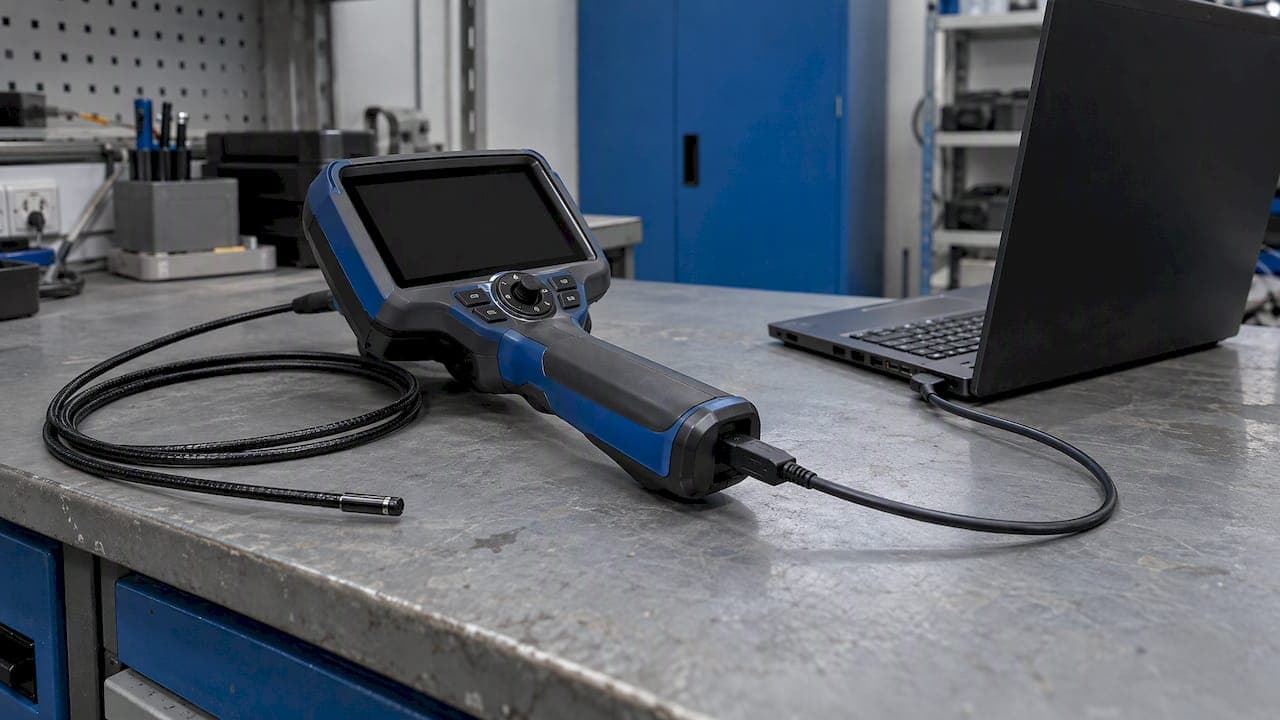
Updating videoscope firmware is usually a short job: identify the exact model and current version, download the manufacturer's file for that model only, copy it to the device as the instructions say, restart on a stable power source, and check the version number afterward. The risk is not the copying. The risk is the wrong file, a lost connection, or a dead battery halfway through. This guide covers the routine that keeps a clinic scope or an inspection borescope out of the repair queue.
TL;DR
- Find the exact model and current firmware version in the device's settings or info menu before you download anything.
- Get the file only from the manufacturer's own support or download page, and match it to your exact model.
- Use a full battery or mains power, copy only the files the instructions name, and never power off mid-update.
- Confirm success by rechecking the version number, then run a test capture before the scope goes back into service.
- If the update fails or the screen stays black, stop and contact the manufacturer or a repair service rather than retrying repeatedly.
Table of Contents
- Why firmware updates matter for a videoscope
- Before you start: identify the model and version
- Where to find the correct firmware file
- Prepare the device and the workspace
- How to install the update
- Confirm the update worked
- What to do if the update fails
- Can you update it yourself, or does it need service?
- Our perspective: update on a schedule, not on impulse
- Need a portable scope or a repair?
- FAQ
- Sources
Why firmware updates matter for a videoscope
A videoscope is a small computer with a camera, a light source and a screen. The firmware is the software that runs the image processing, the recording, the menus and, on many models, wireless or USB behavior. Manufacturers release new versions to fix bugs, correct display or recording problems, and sometimes improve performance. One industrial videoscope troubleshooting article lists software and firmware updates among the first things to check when a unit misbehaves, but treat that as a prompt, not a rule: if your scope works as it should and the manufacturer has issued no notice, there is no reason to update for its own sake.
There are good reasons to update when you see a fault that matches a release note: freezing during recording, an SD card that is not recognized, a display that flickers, or a wireless connection that drops. Before you go further, check whether the problem is mechanical. A scratched lens, a damaged insertion tube or a failing light bundle looks like a software fault but is not. Our videoscope troubleshooting guide for vet professionals and the animal endoscopy troubleshooting guide help you separate the two.

Before you start: identify the model and version
Firmware is written for a specific hardware revision. A file for a neighboring model can look identical and still be wrong. So the first job is to write down three things:
- Exact model name and number, from the label on the handpiece or monitor, and from the box or invoice.
- Serial number, which support teams usually ask for.
- Current firmware version, from the device itself.
Most handheld videoscopes show the version in a settings or info screen. One widely sold handheld videoscope kit, for example, shows the firmware version and serial number under Settings, then INFO, according to its user manual. Your model's menu will differ, so check its own manual. If you cannot find a version screen, that is a signal to ask the manufacturer whether the unit is user-updatable at all.
Keep a simple log with the date, version before, version after, and who did the work. If you run several scopes across exam rooms, a spreadsheet works. Larger operations with many assets sometimes move this into a maintenance system, and a guide to equipment maintenance software for field teams shows how scheduled checks and records can be tracked across devices.
Where to find the correct firmware file
There is one safe answer: the manufacturer's own support or download page for your exact model. Avoid forum attachments, file-sharing sites and third-party mirrors. A file you cannot verify may be corrupt, outdated or built for different hardware.
Two patterns are common:
- A support site with a software and firmware section. You search by model number, pick the matching product family, and download the package. The HDV700 manual describes exactly this route: go to the support site's software and firmware downloads, search the model, and choose the right product group.
- A dedicated update page. A night-vision maker's U.S. firmware update center tells users to download the package for their model, extract the ZIP, and find the .swu update file inside. The device is different from a videoscope, but the pattern is the same one you will meet on many handheld imaging products.
Check the version on the download page against what is on your device. If the page's version is the same or older, you do not need it. Read the release notes too. If they describe fixes for problems you do not have, waiting is a legitimate choice.
If you bought the scope used, through a reseller, or as a rebadged unit, the maker named on the label may not be the one hosting the firmware. Ask the seller who supports the product before you search blindly.
Prepare the device and the workspace
The U.S. Cybersecurity and Infrastructure Security Agency lists sensible steps for any firmware update in its guidance on firmware updates. Translated to a videoscope bench, they look like this:
- Understand what the update changes. Read the release notes and note any warning about settings being reset.
- Back up what you can. Copy recorded images and video off the device and SD card. Photograph or note custom settings such as date, brightness and recording format. If the manufacturer offers the current firmware file for rollback, keep it.
- Plan for failure. Know the manufacturer's support contact before you begin, and do not schedule the update the morning of a procedure or inspection.
- Verify the file. Use only the manufacturer-supplied update, and compare any checksum the manufacturer publishes.
- Protect power. CISA recommends an uninterruptible power supply for the process. For a battery-powered handheld, the equivalent is a fully charged battery, and ideally the charger connected as well if the instructions allow it.
Then add the practical items: a data cable that carries data (some charge-only cables do not), a computer that can read the device as a drive, a clean and correctly formatted SD card if the model uses one, and ten uninterrupted minutes.
Before the update on the HDV700 mentioned above, the manual says to connect the unit to a computer with the supplied USB cable and make sure the computer recognizes it as an external drive. If the computer does not see the device, solve that first. Do not start copying files hoping it will work out.
How to install the update
Methods differ by maker, so your model's instructions override anything here. Still, most handheld videoscopes follow one of two paths.
Method 1: copy the file over USB
This is the pattern described for the HDV700 and for the night-vision device mentioned earlier.
- Connect the device to your computer with the supplied data cable and wait for it to appear as a drive.
- Copy the update file to the root of the drive, not into a folder. The HDV700 manual is specific: copy only the firmware file, and leave out readme files and folders that came in the download.
- Eject the drive safely from your computer, then disconnect the cable.
- Start the upgrade as instructed. On the HDV700 that means opening INFO, choosing the firmware upgrade option, and confirming. The night-vision guide says to restart the device after ejecting it, and the update begins from there.
- Leave the device alone. Do not press buttons, remove the battery or unplug power.
Method 2: update from an SD card
Some monitor-type and SD-card videoscopes read the update from the card at the next power-up. The general steps are to format the card as instructed, extract the ZIP on your computer, copy the update files to the card exactly as the manufacturer describes, insert the card into the powered-off device, and switch it on. Whether the files go to the root of the card and whether the ZIP itself should be copied vary by model, so follow your own guide closely.
Common mistakes
| Mistake | What can happen | Prevention |
|---|---|---|
| File for a different model or revision | Device will not boot or stops working properly | Match model and hardware revision on the download page |
| Copying extra files or folders | Update does not start or fails | Copy only the files the instructions name |
| Low battery | Interrupted write, possible corruption | Full charge, charger connected if allowed |
| Removing the device before ejecting | Incomplete or damaged file | Use the computer's safe eject function |
| Pressing buttons mid-update | Interrupted process | Wait for the completion signal |
The consequence of the wrong file is not hypothetical. One user thread about a network video encoder reports that installing the wrong firmware left the unit dead and recoverable only by sending it for repair. Different product, same lesson.
Confirm the update worked
Do not assume. Check the following:
- Completion signal. Some devices use an indicator light. The night-vision guide describes a blinking orange power light during the update and a solid blue one at completion. Your scope may show a progress bar, a message on the monitor, or a restart.
- Version number. After the restart, return to the same info screen and compare. The HDV700 manual says to check INFO for the new version. The night-vision guide points to System Settings and Version No.
- Function test. Check live image, brightness control, light output, photo and video capture, playback, and any wireless pairing. Record a short clip, then play it back on the device and on a computer.
- Settings. Reset anything the update changed, such as date, time and resolution.
- Log it. Write down the new version and date.
For a clinic, do the function test before the scope reaches a patient. Our guide to prepping an endoscope for inspection fits naturally with that last check: image, light and controls verified before use.
What to do if the update fails
Stay calm and do not repeat the process several times in a row. Work through this order:
- Wait. Some updates take several minutes and the screen may stay dark or show a static logo. Give it the time the instructions state.
- Check power and connections. If the battery died, charge it fully before doing anything else.
- Re-read the instructions for recovery. Some manufacturers publish a recovery method, such as reformatting the card and copying the files again. Use only what the manufacturer says for your model.
- Do not try a different model's firmware. That is how a recoverable problem becomes a hardware repair.
- Contact the manufacturer or an endoscope repair service with the model, serial number, version before the update, and what you saw. A failed update can leave the unit unusable, as CISA notes, which is why planning for failure comes before the update, not after.
If the unit is out of warranty or the maker is no longer reachable, a repair shop that works on endoscopes and borescopes can often tell you whether the problem is firmware, a failing board or a cable fault. We handle endoscope repairs and can look at a unit before you decide to replace it.
Can you update it yourself, or does it need service?
That depends on the manufacturer and model. Some handheld videoscopes are designed for field updates by the user, and their manuals include a procedure. Others, especially larger systems with processors, integrated video towers or sealed handpieces, are serviced only by the manufacturer or an authorized technician. If your manual has no update procedure and the maker's site has no download for your model, assume it is service-only and ask.
Also consider the warranty. Following the manufacturer's published steps with the manufacturer's file should not affect it, but an unofficial update could. When in doubt, ask in writing.
Our perspective: update on a schedule, not on impulse
We sell and repair veterinary and industrial scopes, and the pattern we see is consistent. Most failed updates come from haste: the wrong file, a half-charged battery, or an update started right before a case. A scope that works does not need a new version because one exists.

We suggest a simple rule for clinics and inspection teams. Check the manufacturer's download page for each model once or twice a year, read the release notes, and update only if a note addresses something you have actually seen or the maker recommends it. Do it on a quiet day, with a spare scope available if you have one, and log the result.
Firmware is also one piece of a wider equipment routine. A scope with up-to-date software but a damaged tube or poor storage will still fail you. Our guides on how to store endoscopic equipment and why to upgrade clinic endoscope equipment help you judge when software is the problem and when the hardware has simply reached the end of its useful life. Veterinary equipment is also used in conditions human hospital systems rarely see, from equine airway work in a barn to small-animal procedures in a busy clinic, so a portable, simple scope that you can maintain yourself has real value.
— Endoscope
Need a portable scope or a repair?
If your current videoscope is past reliable service, or you want a portable monitor-type unit with SD-card recording for field and clinic work, take a look at our veterinary and industrial borescope and videoscope range. For airway work in the field, the portable 6mm airway inspection SD-card system is one option, and our support team is available around the clock to help you choose.
FAQ
How often should I update videoscope firmware?
There is no fixed interval. Check the manufacturer's download page for your model once or twice a year, and update when the release notes describe a fix for a problem you have or the maker recommends it. If the scope works properly, you can reasonably leave it alone.
Can I update firmware with the wrong file if the model is similar?
No. Firmware is written for a specific model and hardware revision, and a mismatched file can stop the device from working, sometimes with no recovery except a repair. Match the exact model number and revision before you download.
What if my videoscope does not show a firmware version?
Look in the settings or info menu and in the manual first. If neither shows it, contact the manufacturer with the serial number. It may be a service-only model, or the version may be viewable only with their software.
Will a firmware update erase my recorded images?
It should not, but you should not rely on that. Copy images and video to a computer first, and note your custom settings, since some updates reset them. The release notes usually say what is affected.
What should I do if the screen stays black after an update?
Wait the time the instructions give, then check that the battery is charged and connected. If the screen remains black, follow the manufacturer's recovery steps for your model, or contact them or a repair service rather than retrying with other files.
Sources
- EXTECH HDV700 High Definition VideoScope Kit User Manual
- Firmware Update Center, DNT Optics
- CISA: firmware update countermeasure guidance